



Installation
After purchasing software through Self-Host Pro, you can install it on your own server. Each product page has the following tabs:
- Install (Simple) — One-command installation script that handles everything automatically
- Install (Advanced) — Docker Compose templates and registry credentials for custom deployments
- Available Images — Lists the Docker image tags you're authorized to pull
- Get Help — Support links provided by the seller
Prerequisites
You need:
- A Linux server (Ubuntu, Debian, CentOS, etc.)
- Root or sudo access
- An internet connection
The simple install script will check system requirements and install Docker if needed.
Accessing your products
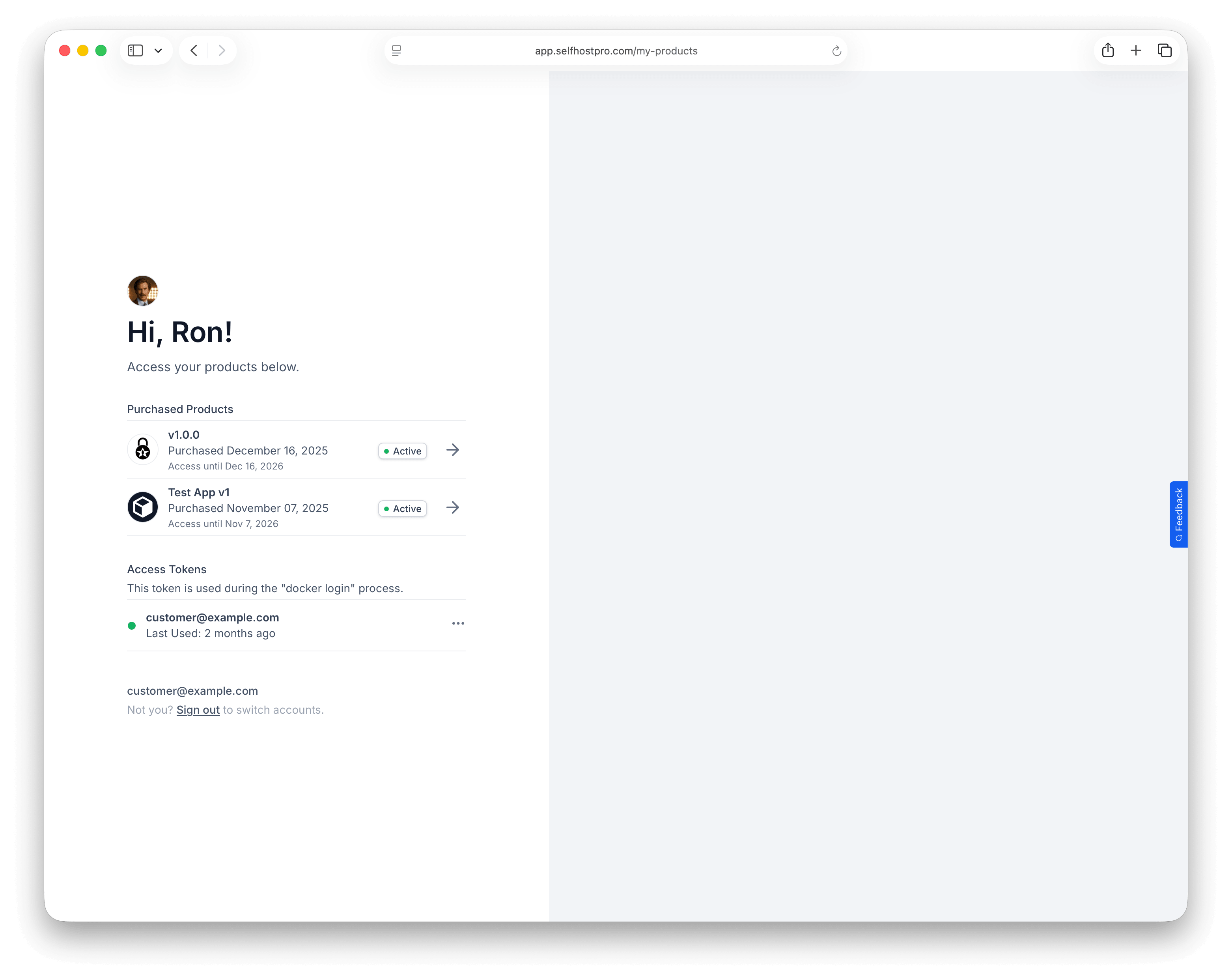
- Check your email for a message from Self-Host Pro with a link to your products
- Go to app.selfhostpro.com/my-products
- Enter your email to receive a sign-in link
- Click the link in your email to access your dashboard
Simple install
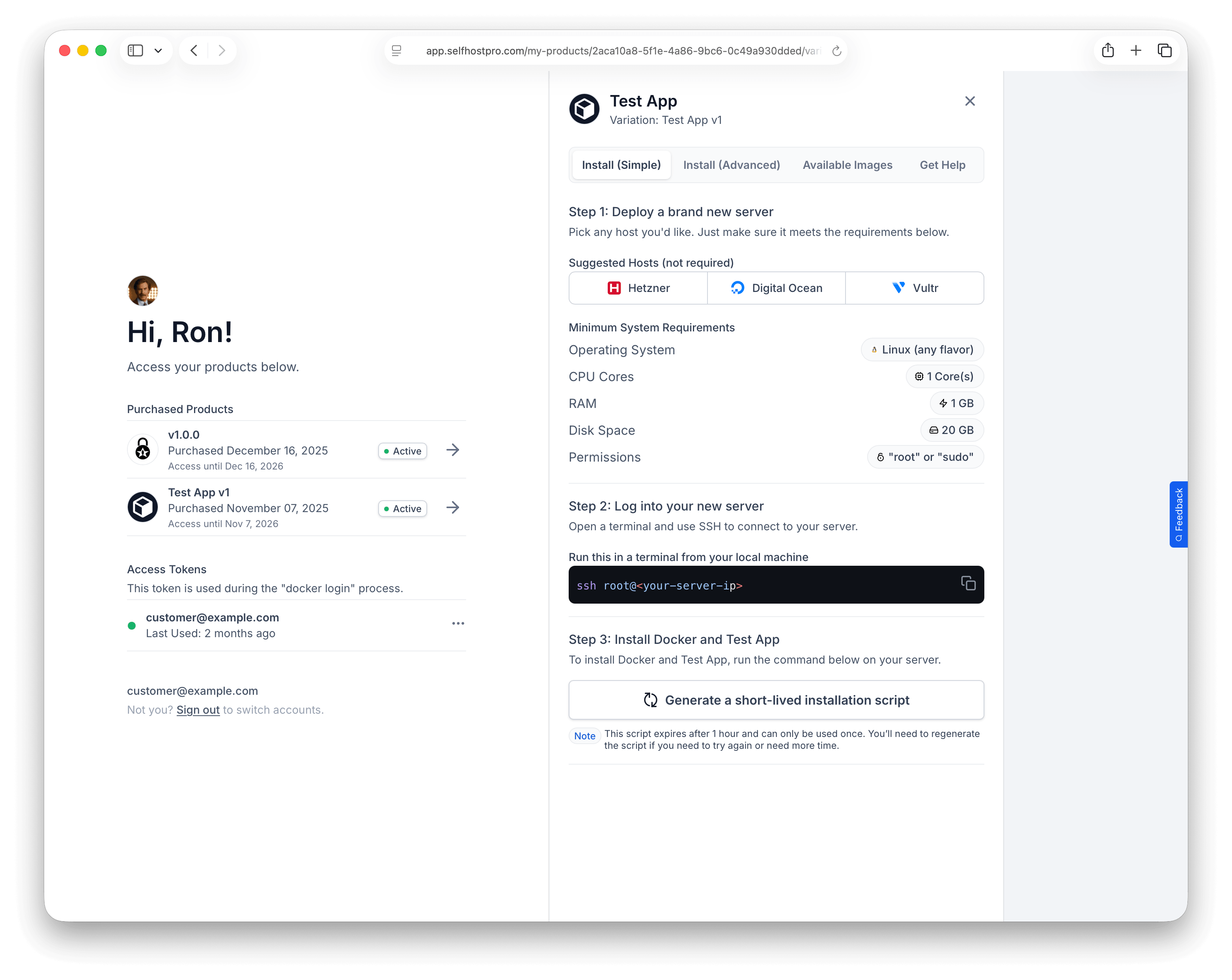
The simple install is recommended for most users. From your product dashboard:
- Click on the product you want to install
- Select the Install (Simple) tab
- Click Generate a short-lived installation script
- Copy the command that appears
- SSH into your server that you want to install to
- Paste the command and run it
The command looks like:
/bin/bash -c "$(curl -fsSL "https://app.selfhostpro.com/install/...")"
What the install script does
The install script automates the entire setup process:
System checks
- Verifies you're running Linux
- Checks for root/sudo access
- Validates CPU, memory, and disk space meet requirements
Docker installation
If Docker isn't installed, the script downloads and installs:
- Docker Engine
- Docker CLI
- Docker Compose
Project setup
Creates a project directory at /srv/{product-name} and downloads:
- Docker Compose configuration
- Environment files
- Any additional configuration files
Configuration
Depending on the product, you may be prompted to:
- Enter your domain or IP address
- Edit configuration files (like
.env)
The script opens your default editor (nano, vim, etc.) if files need editing.
Docker registry authentication
The script automatically authenticates with the Self-Host Pro registry to pull the product's Docker images.
Initialization
Runs any setup commands configured by the seller, such as:
- Database migrations
- Initial data seeding
- Key generation
Startup
If configured, starts the application with docker compose up -d.
After installation
Once installed, your application runs at the URL you configured (your domain or server IP).
Managing the application
The application is installed in /srv/{product-name}. From that directory:
# View running containers
docker compose ps

# View logs
docker compose logs -f

# Stop the application
docker compose down

# Start the application
docker compose up -d

# Pull updates and restart
docker compose pull && docker compose up -d
Re-running the install script
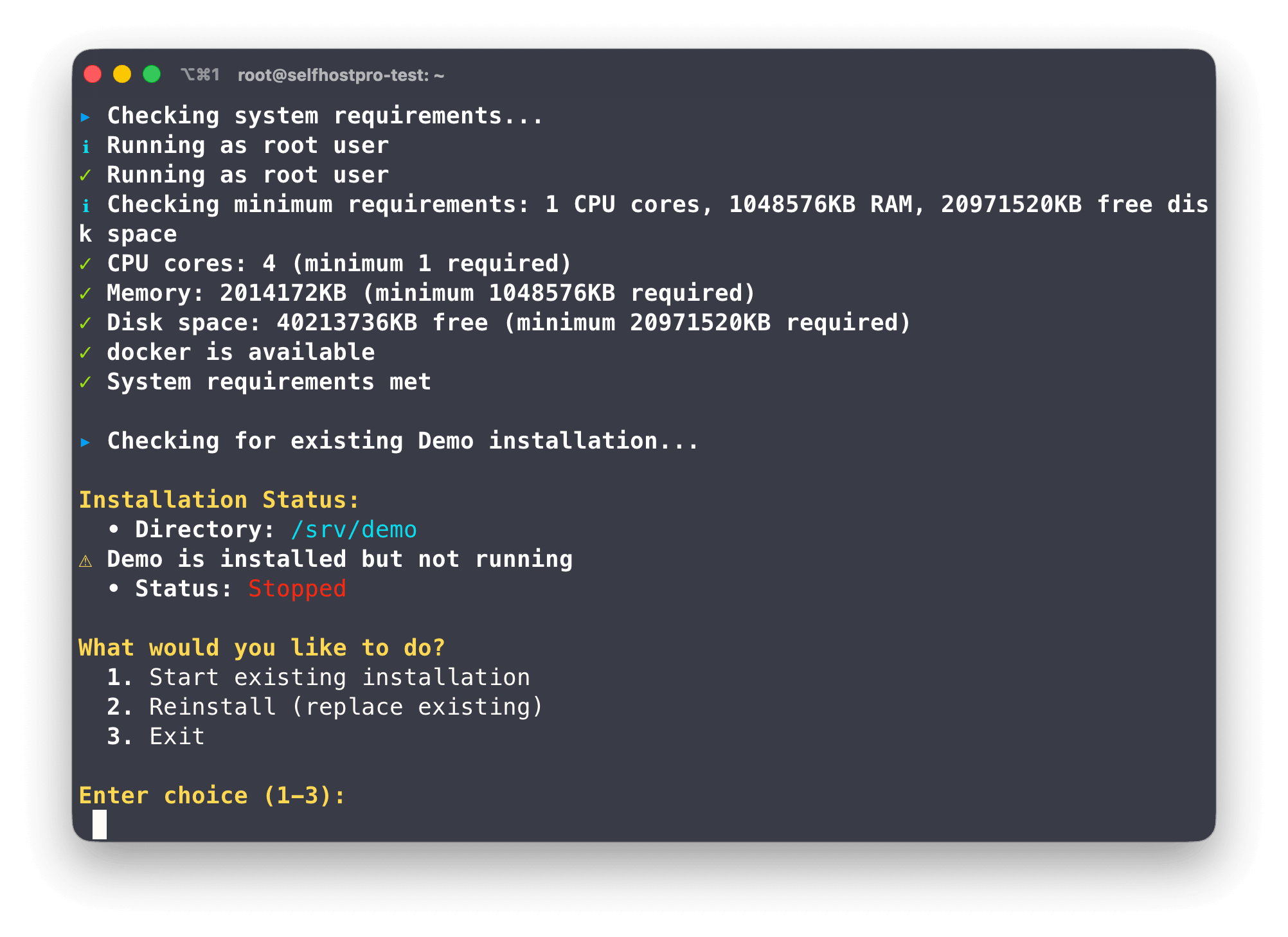
If you run the install script on a server with an existing installation, it will:
- Detect the existing installation
- Show you its current status (running/stopped)
- Offer options:
- Show management commands
- Start the existing installation
- Reinstall from scratch
Advanced install
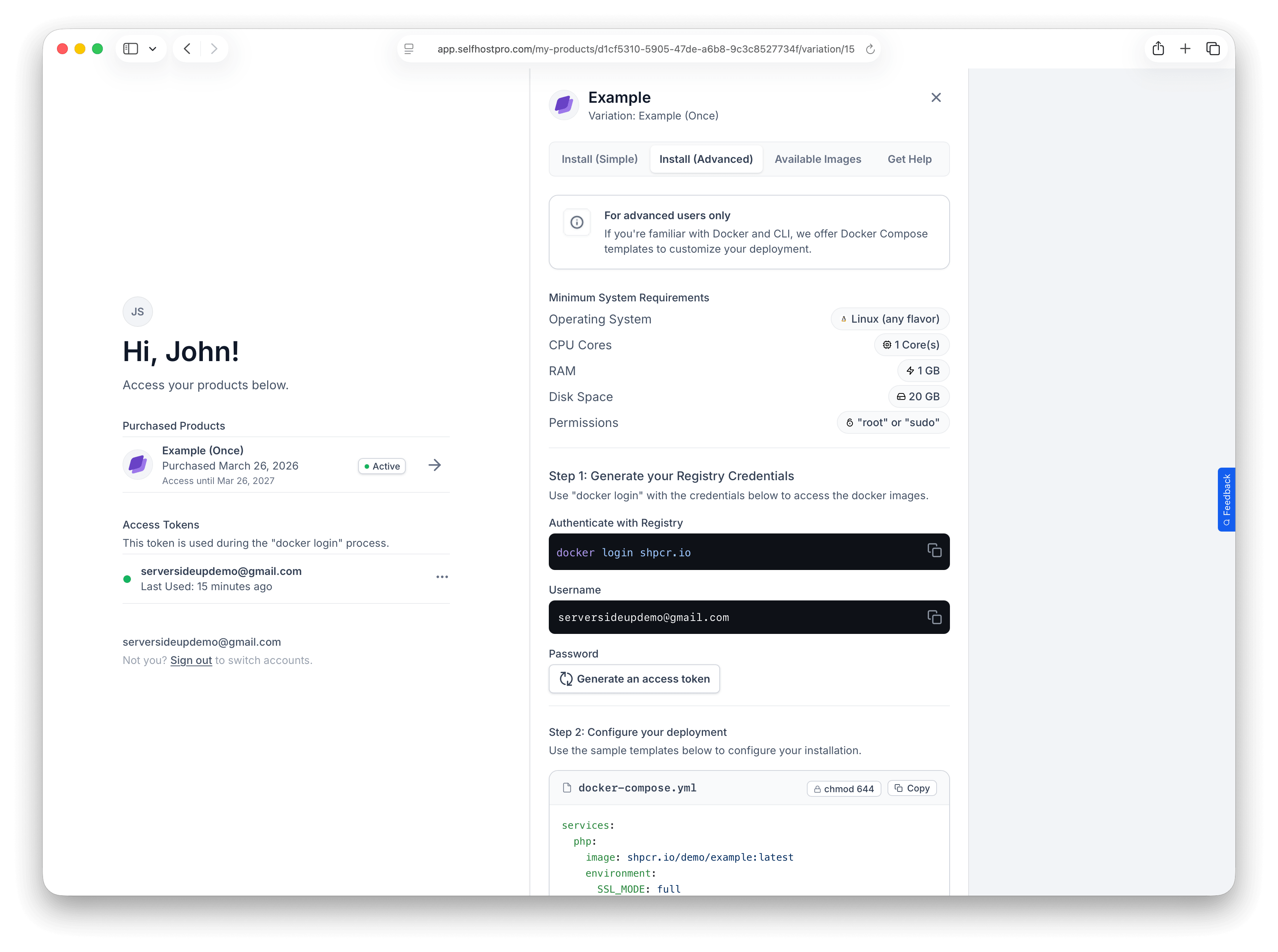
The advanced install option is for users who are familiar with Docker and want to customize their deployment. This is useful if you:
- Use Kubernetes, Docker Swarm, Portainer, or another orchestrator
- Want to integrate with existing infrastructure
- Need to modify the Docker Compose configuration
- Prefer manual control over the installation process
Accessing advanced install
From your product dashboard:
- Click on the product you want to install
- Select the Install (Advanced) tab
You'll see:
- Minimum system requirements — CPU cores, RAM, and disk space needed
- Registry credentials — Commands to authenticate with the Self-Host Pro registry
- Docker Compose template — The complete
docker-compose.ymlfor the product - Example .env file — Environment variables you'll need to configure
Step 1: Generate registry credentials
Before you can pull the Docker images, you need to authenticate with the Self-Host Pro registry.
- From the Advanced tab, copy the
docker logincommand - Run it on your server or in your deployment environment
- Use your email as the username
- Click Regenerate access token to get a password
docker login shpcr.io
# Username: [email protected]
# Password: (paste your access token)
Step 2: Configure your deployment
Copy the Docker Compose template and .env example from the Advanced tab. You can:
- Use them directly with
docker compose up -d - Adapt them for Kubernetes (convert to Kubernetes manifests)
- Import into Portainer, Rancher, or other management tools
- Modify for Docker Swarm with
docker stack deploy
Using with other orchestrators
Kubernetes
Convert the Docker Compose file to Kubernetes manifests using tools like Kompose or create your own Deployment and Service resources. Make sure to:
- Create a Kubernetes Secret for registry authentication
- Configure environment variables via ConfigMaps or Secrets
- Set up persistent volumes for any mounted data
Docker Swarm
Deploy as a stack:
docker stack deploy -c docker-compose.yml myapp
Portainer
Import the Docker Compose file directly through Portainer's stack deployment interface.
Troubleshooting
Script expired or already used
Install scripts are one-time use and expire after 60 minutes. If you see an error about the script being expired or already used, go back to your dashboard and generate a new install script. This is normal — you'll need a fresh script for each installation attempt.
System requirements not met
If your server doesn't meet the minimum requirements, you'll see a warning with the specific issue (CPU cores, memory, or disk space). You can choose to proceed anyway or upgrade your server.
Docker installation failed
If Docker fails to install automatically, you can install Docker manually and re-run the install script.
Registry authentication failed
If you can't pull images, your access may have expired. Check your product dashboard to verify your access is still active. If you have a subscription, make sure it's current.
Access denied from this IP address
Signed download URLs from the install script are tied to the IP where you started the install. Run the script from the same machine or network you used when you generated it. If you changed networks or use a VPN, generate a new script after connecting from the IP you will use on the server.
Getting help
From your product dashboard, click the Get Help tab to find support resources provided by the seller. Each product may have:
- Support email
- Documentation site
- GitHub repository
- Discord server
- Community forum
For issues with the Self-Host Pro platform itself (registry access, billing, etc.), contact Self-Host Pro support.